




How to Join a Microsoft Teams Meeting: A Step-by-Step Guide
Click on the meeting link provided to you in the notification email. This will open your default web browser.
If you have the Microsoft Teams app installed on your computer or phone, the browser will prompt you to open the app. Click "Open Microsoft Teams" to join the meeting through the app. It may also prompt you to download the app to make it easier to join.
If you do not have the app installed and do not wish to download, you can choose to join the meeting on the web by clicking "Continue on this browser".
If you have a Microsoft account, you can sign in to join the meeting.
If you don't have an account or prefer not to sign in, you can join the meeting as a guest by entering your name and email when prompted.
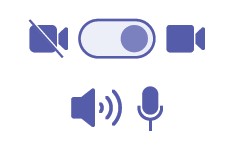
Make sure your microphone and camera are working correctly. If joining from a browser you may have to grant access to your camera and microphone. You can also choose to join with your camera and microphone turned off if you prefer. *Some meetings may be set where cameras or microphones are turned off automatically. If microphones are muted for the meeting, you can instead use the Q&A or chat options available during the meeting.
Once you have configured your audio and video settings, click "Join now" to enter the meeting.
If the meeting organizer has set up a lobby, you may need to wait for them to admit you into the meeting. If no lobby was created, you will be admitted directly into the meeting.
© 2026 Kiwi Condos Access Cards. All Rights Reserved
Are you hesitant to use apps or unable to access the App Store? You can still access your association documents through a web browser. Please note that the browser version has limited functionality, and we recommend using the app for the best experience, click here to register